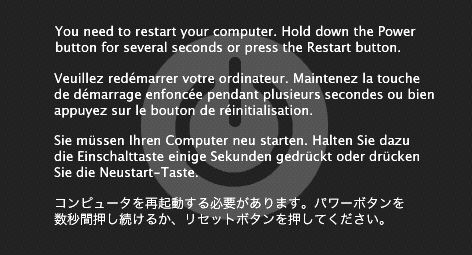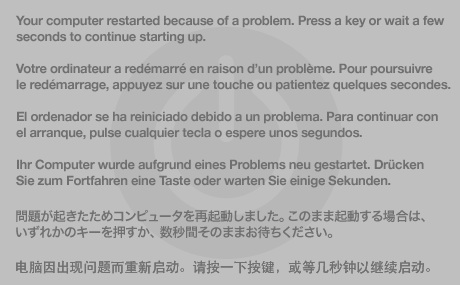

![]() |
![]() |
|
|
Causes of kernel panics |
|
Troubleshooting kernel panicsGeneral advice for resolving kernel panics and other startup problems can be found in the AppleCare® Knowledge Base document "Your Mac won't start up in Mac OS X." If the instructions in this AppleCare Knowledge Base document do not resolve the issue, try the following five steps: 1. Rule out major hardware problemsKernel panics frequently result from major hardware problems with your Mac. To rule these out, run the Apple Hardware Test distributed with Macintosh® computers manufactured in recent years. In particular, consider the instructions for running the test in Loop Mode which, if supported, is often effective in identifying hardware-related causes of intermittent kernel panics. If you Mac predates the distribution of the Apple Hardware Test, I recommend third-party utilities for hardware testing. If the Apple Hardware Test or your third-party hardware-testing utility identifies problems with RAM, remove the RAM DIMMs. A note about RAM testingWhile the Apple Hardware Test will almost invariable find defective RAM, there have been situations where defective RAM has been missed. As RAM problems are the leading cause of kernel panics, you may wish to perform additional RAM tests. Additional methods of testing RAM include third-party RAM tests and testing by process of elimination. Third-party RAM testsThird-party utilities which provide RAM testing include:
Testing RAM by process of eliminationYou can test individual RAM DIMMs by process of elimination. If your Mac has multiple RAM DIMMs, you can remove all but one and retest your Mac to see if kernel panics recur. If kernel panics do not recur, reinstall a second RAM DIMM and retest. Repeat this process until you have tested all of your RAM. If kernel panics recur at any point, the last DIMM you reinstalled is probably defective and should be replaced. 2. Repair disk and permissions on your Mac OS X boot volume3. Assure you have sufficient RAM and available disk space4. Rule out Startup Items or Login ItemsCorrupted or incompatible Startup Items or Login Items can cause kernel panics. 5. Rule out an incompatible, defective, or corrupted third-party applications.If kernel panics consistently occur when using a specific application:
6. Eliminate other potential hardware problems6.1. Assure drivers and kernel extensions for third-party hardware are currentIf you have installed third-party hardware or peripherals that required you to also install specific, vendor-provided software, such as drivers or kernel extensions, to support that hardware under Mac OS X, check the vendor's Web site to assure you have the latest version of the required software. If the version of the required software installed on your Mac is not current, install the latest version. Examples of such vendor-provided software include:
6.2. Verify connections, cables, and proper installationFollowing all of the safety instructions documented in the Apple manual which accompanied your Mac, assure all connections and cables associated with peripherals or internal hardware additions you have installed are good. If you have installed new hardware inside your computer, such as a new video card, hard disk, or AirPort® card assure that these devices are properly installed. 6.3. Remove peripherals and third-party hardware additionsIncompatible hardware -- peripherals and hardware additions -- or vendor-provided software related to such -- such as kernel extensions -- can cause kernel panics. Ruling out these items by process of elimination is required if testing to this point has not resolved kernel panics.
If all else fails...If you have followed all of the troubleshooting steps above and none of the steps have either uncovered a cause or resolved the kernel panics, the following are your remaining options:
Obtaining help with kernel panicsKernel panics usually generate a file called panic.log in the Computer > Macintosh HD > Library > Logs folder. The panic.log file contains the logs from all panics, with the most recent at the end of the file. If you have performed the five troubleshooting steps specified above and the source of the kernel panics remains unidentified, then you can post recent panic logs to the Apple Discussions for analysis. Please do not post the panic log until after you have performed all of the tests recommended above. Copy and paste the most recent panics from the end of the panic.log file into either:
If any of the tests revealed problems, be sure to note that in your post. Likewise, if the panics consistently occur when using a specific application, be sure to note that application in your post, including its name and the version of the application you are using. Note: If your Mac has experienced multiple kernel panics, remember that the panic.log file contains a panic log for each kernel panic. Post only the most recent panic logs, which will be at the end of the panic.log file. For example, post just the panic logs from kernel panics which occurred today. If this does not solve your problem, contact Miss Mac 454-7253. Back to Top |
|
|
|
|
|
|
|
|